Advantages and possibilities of Custom JavaScript Variables 

Custom JavaScript Variables in Google Tag Manager

Google Tag Manager Tutorial

Custom variables (especially Custom JavaScript Variables) of Google Tag Manager are a powerful tool to eliminate tracking issues. Custom variables require a single anonymous function that returns a value. Custom JavaScript Variables often use other Tag Manager variables as input and return a modified version of that as output.

In simple terms, you can use individual JavaScript variables to utilize other variables, process or manipulate them with JavaScript, and convert and output them into a new variable.

Areas of application for custom JavaScript variables

What are Custom JS Variables actually used for?

The areas of application for custom JS variables start exactly where the capabilities of the “predefined” Google Tag Manager variables end. For example, do you want to pass only the filename of a PDF file instead of the page URL or the click path to the web analytics tool? Your e-commerce shop generates alphanumeric order numbers with umlauts, but the affiliate marketing network only accepts numeric inputs? Such issues are quickly and easily solved with custom JavaScript variables in the Tag Manager.

How do I create a custom variable?

Procedure in Google Tag Manager

To create a custom variable, log into your Google Tag Manager account, click on the “Variables” in the left navigation, and then “New” in the “Custom Variables” section.

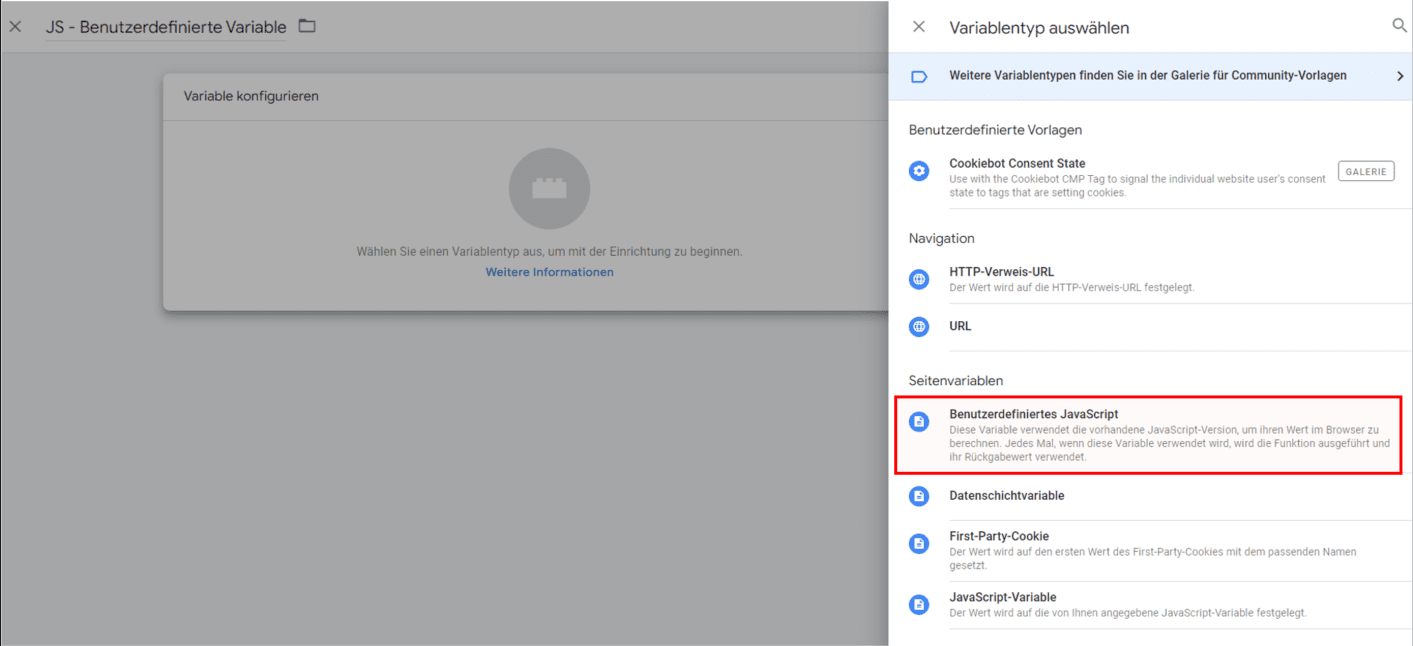
In the window that opens, a name can now be used (We recommend a prefix, e.g. JS – Custom Variable XYZ), then click on “Configure Variable” and then on the right click “Custom JavaScript” .

Benutzerdefinierte JavaScript-Variable im Google Tag Manager konfigurieren, Schritt-für-Schritt-Anleitung zur Erstellung einer neuen benutzerdefinierten Variable.

Building a custom JS variable in GTM

Basic structure of a JavaScript function

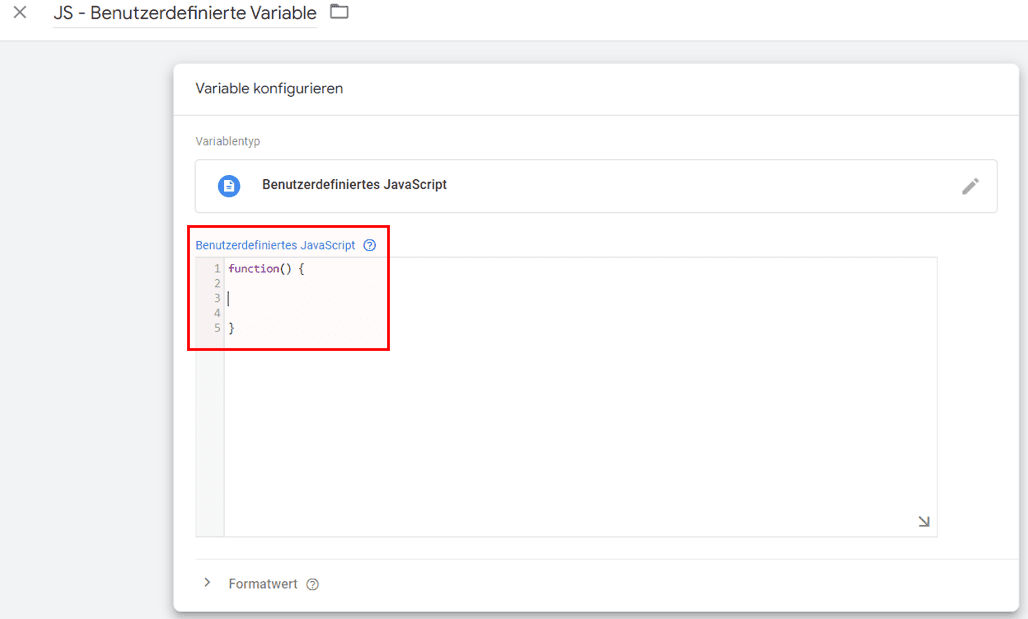
The structure of a JS variable is fundamentally quite simple. As mentioned at the beginning, it is an anonymous function that ultimately returns a value. The function in our example is primarily intended to illustrate the structure in a simplified manner. In the next step, it will be filled with “life”.

Important: In Google Tag Manager, custom JS variables do not need to be placed in <script> </script> tags.

JavaScript-Editor mit leerer Funktion zur Erstellung einer benutzerdefinierten JS-Variable im Google Tag Manager.

Functioning of a custom JS variable in GTM

Custom JS variables can solve problems

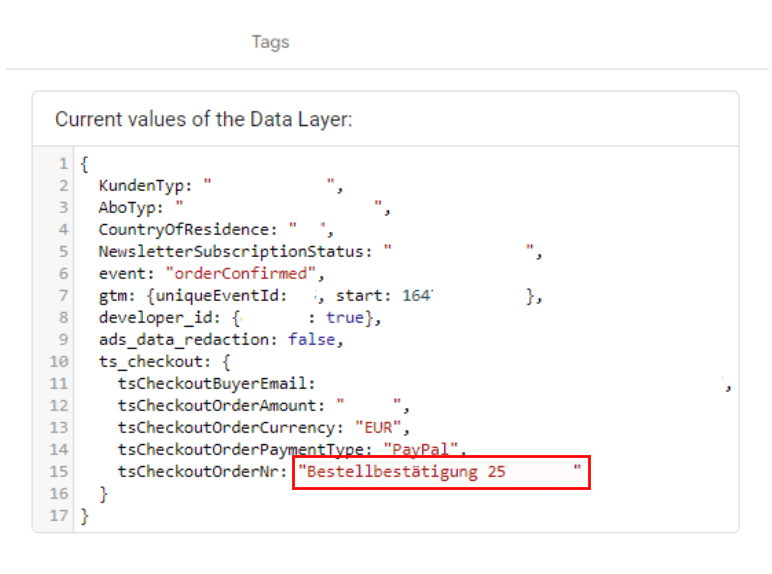
In the next step, this function must now be “filled” accordingly depending on the use case or the problem to be solved. In our (real customer) case study, the problem exists that an e-commerce shop generates an order number with an alphanumeric value including umlauts instead of a numeric value on the final confirmation page (that is, where a sale is to be tracked), which is not accepted by the affiliate marketing network AWIN. As is often the case, the customer has only limited resources available or is bound by release cycles that are several weeks in the future.

However, since marketing goals are usually not flexible and revenue targets must be met despite technical problems, small “life hacks” with Google Tag Manager help in such situations 🙂

Datenlayer-Ansicht mit Bestellbestätigung 25, Zahlungsart PayPal, Währung EUR, dargestellt in Google Tag Manager zur Lösung von E-Commerce-Tracking-Problemen.

Example - Removing non-numeric characters from a string

Custom JS Variables in Use

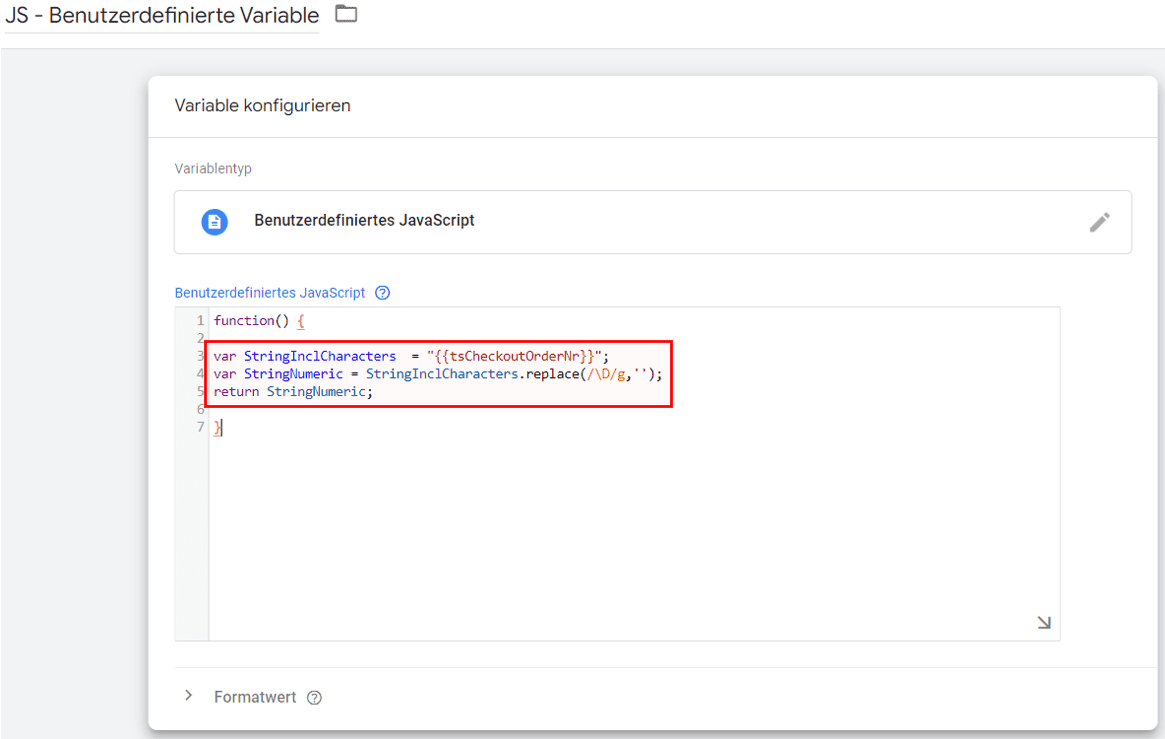
This screenshot illustrates a completed JS function aimed at removing all non-numeric characters from a string (in our case, the order number).

  1. var StringInclCharacters – We define a JavaScript variable named “StringInclCharacters” for the initial string (String)
  2. var StringNumeric – We define a JavaScript variable named “StringNumeric”, which will contain the cleaned string.
  3. {{tsCheckoutOrderNr}} – This is an existing data layer variable named “tsCheckoutOrderNr”, which in our example contains the alphanumeric order number. This should be “cleaned” and ultimately contain only numeric characters.
  4. replace – With “replace”, an existing variable can be manipulated.
  5. (/D/g,”) – RegEx statement to remove all non-numeric characters.
  6. return – The “return” statement returns a variable.
JavaScript-Codebeispiel zur Extraktion numerischer Zeichen aus einer Zeichenkette zur Bereinigung von Bestellnummern.

Passing the variables to a tracking provider

Further use of the Custom JS variables

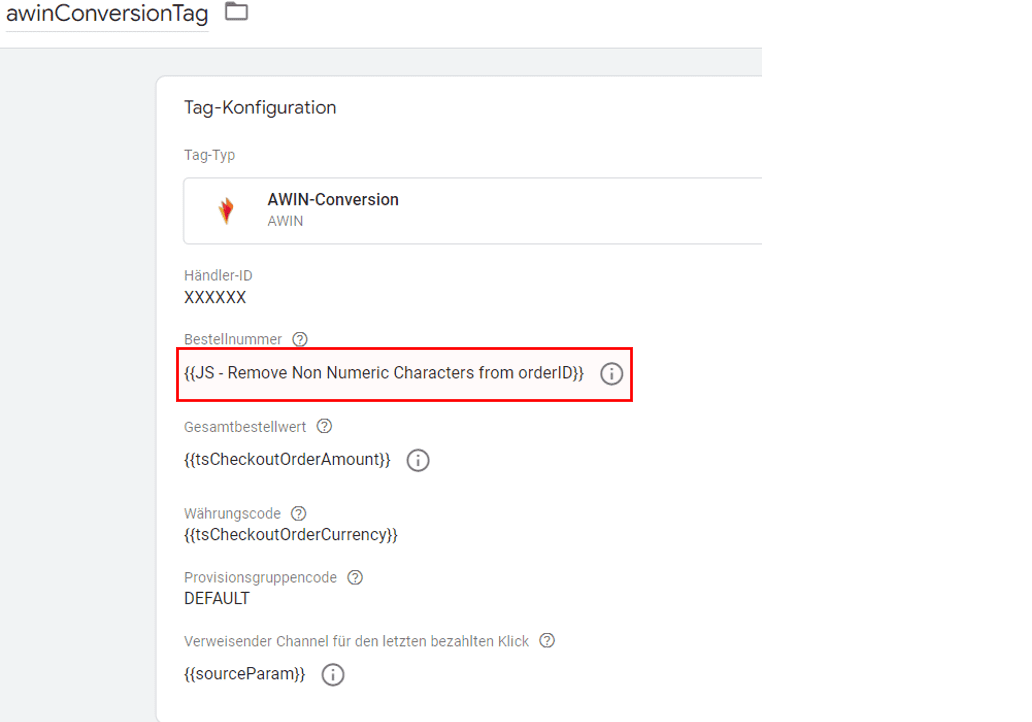
Since custom JS variables in Google Tag Manager simply return a value, they can be used like normal data layer variables (DataLayers). This means that – as seen in the example – instead of the original variable, our custom JavaScript variable is now passed as “Order Number”. The transfer to the AWIN tracking code is only exemplary at this point; this information can be passed to any other tracking codes such as Google Ads, Bing Ads, Facebook Ads, etc.

Konfiguration eines AWIN-Tags im Google Tag Manager mit Platzhaltern für Bestellnummer und Gesamtbetrag zur Übergabe an Trackinganbieter.

A small list of additional variables for use in GTM

Useful custom JavaScript variables

1

String in uppercase

1
2
3
4
5

function() {

var StringLowerCase = “{{string in lowercase}}”;
var StringUpperCase = StringLowerCase.toUpperCase();;
return StringUpperCase;
}

2

String in lowercase

1
2
3
4
5

function() {

var StringUpperCase = “{{String in Uppercase}}”;
var StringLowerCase = StringUpperCase.toLowerCase();
return StringLowerCase;
}

3

Remove special characters from string

1
2
3
4
5

function() {

var StringInclSpecialChars = “{{string with special characters}}”;
var StringExclSpecialChars = StringInclSpecialChars.replace(/[A-Za-z0-9_]/g, ”)
return StringExclSpecialChars;
}

4

Convert German umlauts to character sequence

1
2
3
4
5
6
7
8
9

function()

{
var StringInclUmlaute = “{{String with umlauts}}”;
var LowerCaseIncUmlaute = StringInclUmlaute.toLowerCase();
LowerCaseExcUmlaute = LowerCaseIncUmlaute.replace(/ä/g, ‘ae’);
LowerCaseExcUmlaute = LowerCaseExcUmlaute.replace(/ö/g, ‘oe’);
LowerCaseExcUmlaute = LowerCaseExcUmlaute.replace(/ü/g, ‘ue’);
return LowerCaseExcUmlaute;
}

Do you have questions about custom variables or Google Tag Manager?

If you have problems with custom JavaScript variables or need assistance with a Google Tag Manager implementation or training, feel free to contact us!


4.9
Based on 33 reviews
Ein Mann in weißem Hemd lehnt an einer Wand, neben ihm das Rheinwunder Logo
Founder Ralph Grundmann 0228 243 313 53